
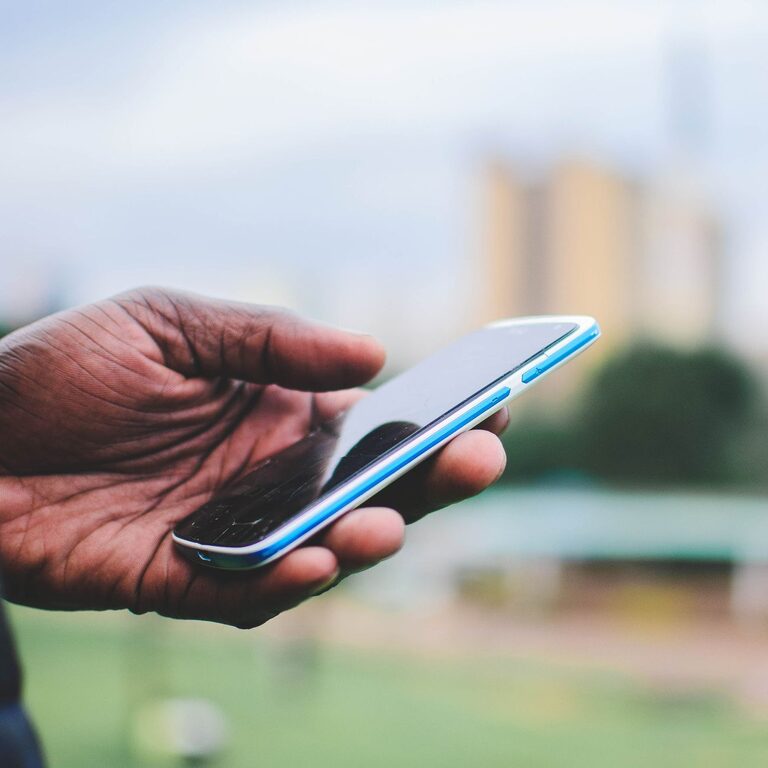
Smartphones are much more than devices for calls, messages, and social media. Many include practical features that can make everyday tasks faster, simpler, and more convenient. From scanning documents to sharing your location, these tools are often built into your phone and require little or no extra setup.
Some features may be available on both Android and iPhone, while others may use different names or menus depending on your device. Exploring your phone’s settings can help you find useful options that match your daily routine.
Scan Documents Without a Scanner
Your smartphone camera can often turn paper documents into digital files. This is useful for receipts, forms, notes, schoolwork, and other records.
Many phones include a document scanning option in the camera or notes app. To use it:
- Place the document on a flat, well-lit surface.
- Open the camera or notes app.
- Select the scan or document option.
- Let the phone detect the edges.
- Save the result as an image or PDF.
A scanned document is easier to store, email, and organize than a loose sheet of paper. Some scanning tools can also recognize text, allowing you to copy words from the image and paste them into another app.
Tips for Better Scans
Keep the phone steady and avoid shadows across the page. If the document has several pages, check whether the scanning tool allows you to combine them into one file. Naming each file clearly can also make it easier to find later.
Use Voice Typing for Faster Messages
Typing on a small screen is not always convenient, especially when you need to write a long message. Voice typing lets you speak instead of using the keyboard.
Tap the microphone icon on your phone’s keyboard and speak naturally. The phone will convert your words into text. You can use this feature for messages, emails, notes, search queries, and reminders.
Voice typing works best when you speak clearly and pause briefly between sentences. You may need to add punctuation manually, although many phones recognize phrases such as “period” or “question mark.”
This feature can also be helpful when your hands are busy or when you want to capture an idea before you forget it.
Set Custom Reminders
A basic alarm is useful for waking up, but reminders can help with many other parts of the day. You can create reminders for appointments, household tasks, shopping items, or regular activities.
Most reminder apps allow you to set:
– A specific date and time
– A repeating schedule
– A location-based alert
– A title and additional notes
– A priority level
A location-based reminder can notify you when you arrive at a selected place. For example, you could create a reminder to pick up an item when you reach a store. Repeating reminders are helpful for weekly chores, regular bill due dates, or other routine tasks.
Share Your Location When Meeting Someone
Location sharing can make it easier to meet friends, family members, or coworkers. Many messaging and map apps let you share your current location for a limited period.
Temporary sharing is often the best choice because it stops automatically after the selected time. Before sharing, confirm that you have chosen the correct person and duration. You can usually stop sharing at any time through the same app.
This feature is especially useful when someone needs to find you in a large public place, when you are traveling, or when plans change while you are on the way.
Take Advantage of Built-In Translation Tools
Translation features can help you understand signs, menus, messages, and short documents. Some phones and translation apps allow you to:
– Translate typed text
– Translate spoken words
– Use the camera to read printed text
– Save commonly used phrases
– Download language files for limited offline use
Camera translation is convenient when traveling or reading information in another language. For the clearest results, hold the phone steady and make sure the words are visible in good lighting.
Translations may not always be perfect, especially with slang or complex sentences. For important information, compare the result with another trusted source.
Use Focus and Do Not Disturb Modes
Notifications can interrupt work, rest, and personal time. Focus modes and Do Not Disturb settings allow you to control which alerts appear and when.
You can often create different profiles for activities such as:
– Work
– Sleep
– Driving
– Reading
– Exercise
– Personal time
Each profile can limit notifications from selected apps or contacts. Some phones also allow you to schedule a mode automatically, such as turning on Do Not Disturb every night.
Instead of silencing every alert permanently, choose the notifications that are genuinely important. This gives you fewer distractions while keeping useful messages available.
Turn on Emergency and Safety Features
Many smartphones include safety tools that can be set up in advance. Depending on the device, these may include emergency contacts, medical information fields, automatic emergency calls, and location sharing during an emergency.
Look for these options in the phone’s safety, health, or settings app. Add only information you are comfortable storing on the device, and review it occasionally to make sure your emergency contacts are current.
It is also useful to learn how to make an emergency call from the lock screen. Knowing where this feature is before you need it can save time during a stressful situation.
Use Screen Recording and Screenshots
Screenshots are a quick way to save information displayed on your screen. You can use them for travel details, confirmation pages, instructions, or messages that you may need to reference later.
Screen recording is useful when you want to show someone how to complete a task in an app. It can also help you save a short demonstration or capture steps that are difficult to explain in writing.
After taking a screenshot or recording, review the file and remove unnecessary personal information before sharing it. Many phones include editing tools that let you crop, mark, or blur parts of an image.
Connect With Nearby Devices
Bluetooth and wireless sharing features make it easier to connect your phone to headphones, speakers, cars, watches, and other devices. Once paired, many accessories reconnect automatically when they are nearby.
Nearby sharing tools can also send photos, links, and documents to compatible phones or computers without needing to email them. This is often faster for moving a few files between devices.
For better results, keep both devices close together and make sure Bluetooth or wireless sharing is enabled. Turn off connections you are not using if you want to reduce clutter in your settings.
Make Your Phone Easier to Use
Accessibility settings are designed to improve comfort and control. You do not need a specific disability to benefit from them. Useful options may include:
– Larger text and display elements
– Increased contrast
– Screen magnification
– Captions for videos
– Spoken screen content
– One-handed keyboard layouts
– Custom touch controls
These tools can make reading, typing, and navigating more comfortable. Try one setting at a time so you can see which changes are most helpful.
Explore Settings With Purpose
Your smartphone may already include many tools that can save time every day. A few minutes spent exploring the camera, notes, reminders, accessibility, privacy, and notification settings can reveal features you may not know about.
Start with one task that feels inconvenient, such as organizing receipts, remembering appointments, or managing notifications. Then look for a built-in feature that addresses that problem. Small improvements can add up, helping your phone become a practical assistant rather than just another source of distractions.
